Your phone is almost certainly the least-protected device with the most sensitive access in your life — email, banking, work systems, photos, and the “forgot password” reset for nearly every account you own, all reachable from one small glass rectangle you’ve probably left on a restaurant table at least once. So let’s fix that properly. Here’s exactly how to protect data on a mobile device, covering the lock screen basics almost everyone skips, the app and network habits that actually matter, and what to do the moment a phone is lost or stolen.
Why Phones Are a Bigger Target Than People Realize
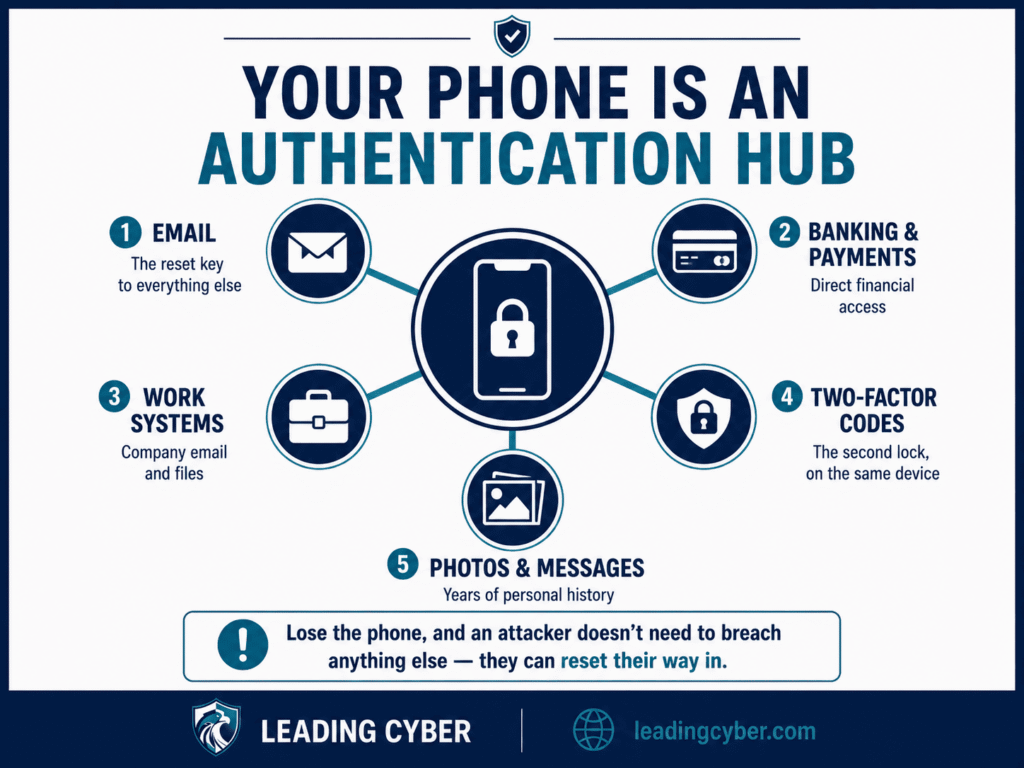
A modern phone isn’t a phone — it’s an authentication hub. It holds your email (the master key to every “forgot password” flow), your banking and payment apps, your work email and files, two-factor codes, and years of photos and messages. Lose control of the phone, and an attacker doesn’t need to breach a single other account; they can often reset their way into all of them. That’s the real stakes behind a topic that sounds almost too basic to write about.
Lock Screen and Authentication: The Non-Negotiables
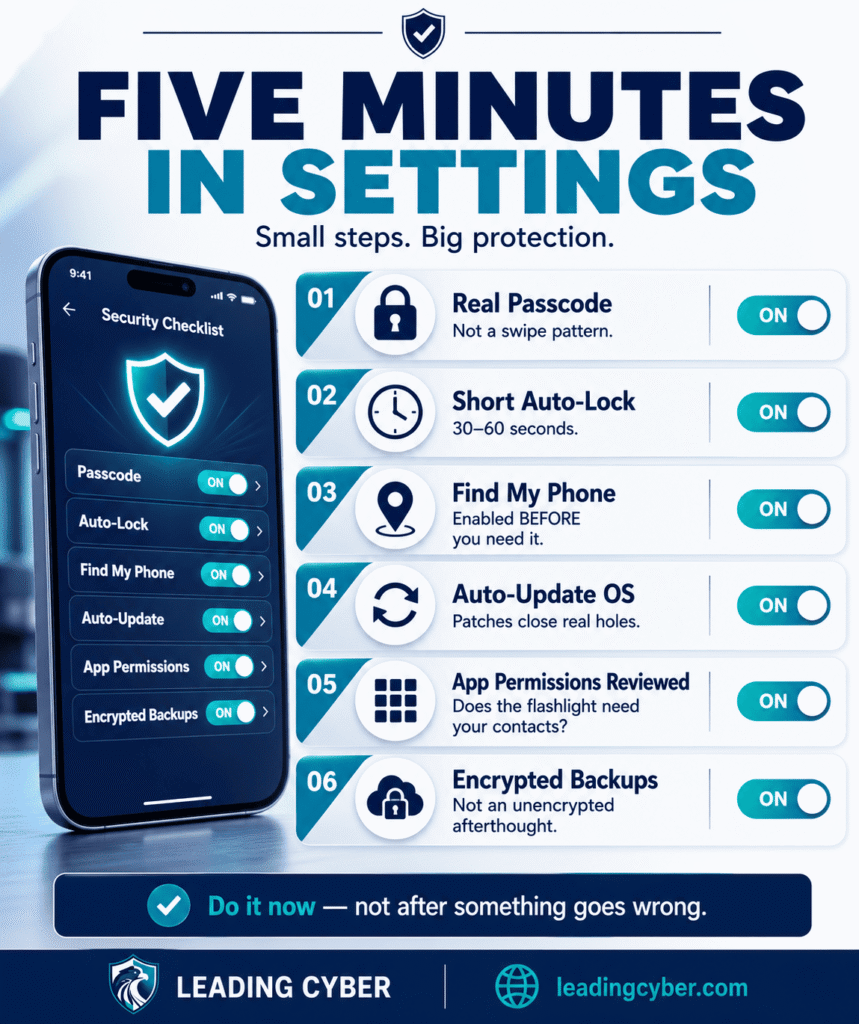
- Use a real passcode, not a pattern. Six-digit PINs or alphanumeric passcodes resist shoulder-surfing far better than the swipe patterns everyone can see smudged on the glass.
- Enable biometrics as convenience, not as the only lock. Face ID and fingerprint are great for daily unlocks; the passcode underneath is still the real defense, especially since biometrics can sometimes be legally compelled in ways a memorized passcode isn’t.
- Set auto-lock to something short — 30 seconds to a minute. A phone that stays unlocked for five minutes on a coffee shop table is an open door, not a locked one.
- Enable remote wipe capability now — Find My iPhone or Find My Device, activated before you need it. This single setting is the difference between a stolen phone and a stolen phone plus every account on it.
App and Data Hygiene
- Update the OS promptly. Mobile operating system updates routinely patch vulnerabilities that are already being exploited — this is the mobile version of the patching discipline covered in vulnerability management, just with a much simpler “one tap” remediation.
- Install from official stores only. Sideloaded apps and third-party stores are where the malware lives; the app store review process, imperfect as it is, is still your best filter.
- Audit app permissions periodically. Does the flashlight app really need your contacts? Revoke anything that doesn’t map to what the app actually does — permission creep is how a harmless-looking app becomes a data pipeline.
- Encrypt device backups. Cloud and local backups both need to inherit your phone’s protection level, not sit as an unencrypted afterthought.
- Use a password manager, not your browser’s autofill alone. It’s the single highest-leverage habit for protecting every other account your phone touches.
iPhone: Platform-Specific Steps
iOS does a lot of this for you by default, which is part of why iPhones have a reputation for being “harder to hack” — but default doesn’t mean automatic. A few settings still need your input:
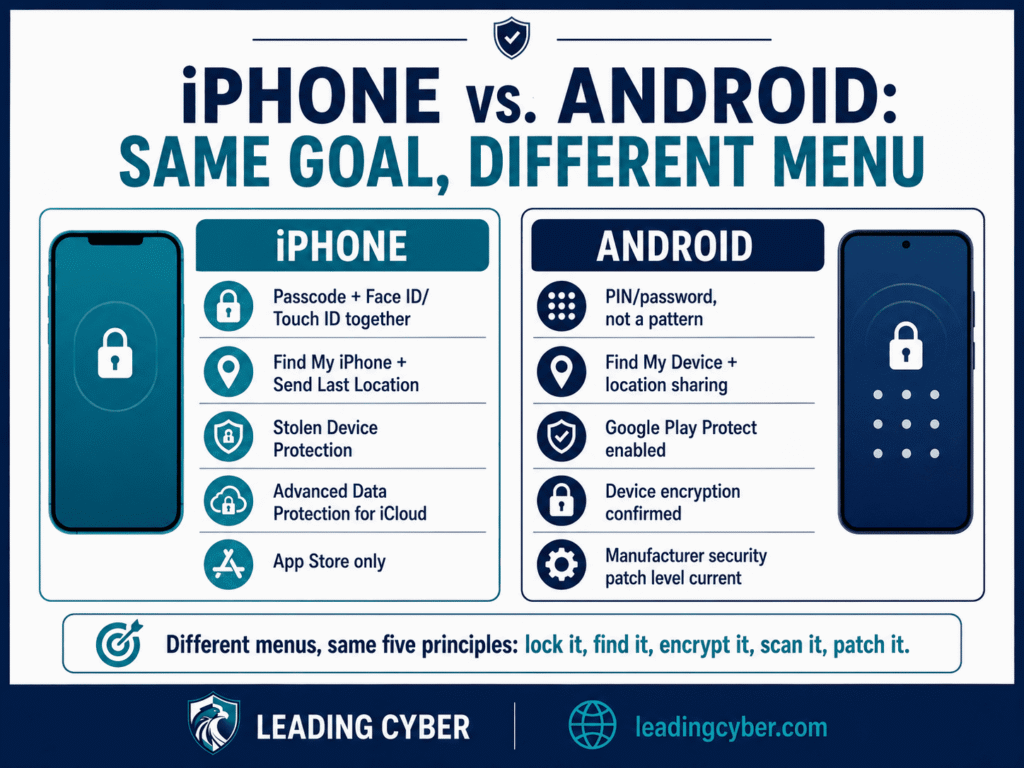
- Set a real passcode, not just Face ID. Face ID is a convenience layer over the passcode — the passcode is what actually protects the phone if biometrics fail or get disabled (which happens automatically after a restart, or several failed attempts). Use six digits minimum, or a custom alphanumeric code if you handle genuinely sensitive data.
- Turn on Find My iPhone under your Apple ID settings, and make sure “Send Last Location” is enabled — it quietly reports the phone’s location right before the battery dies, which is often the difference between finding a stolen phone and never seeing it again.
- Enable Stolen Device Protection (on newer iOS versions) — it adds a delay and a Face ID requirement before critical actions like changing your Apple ID password can happen away from familiar locations, specifically to stop someone who’s watched you type your passcode from locking you out of your own account.
- Turn on Advanced Data Protection for iCloud, which extends end-to-end encryption to iCloud backups, photos, and notes — without it, Apple can access more of your backed-up data than most people assume.
- Review App Privacy Report (under Screen Time or Privacy settings) to see which apps are actually using the permissions they requested, not just which ones they were granted.
- Stick to the App Store. Some regions now permit sideloading due to regulatory changes — resist it unless you have a specific, informed reason. It removes Apple’s review layer, which is doing more work than people realize.
Android: Platform-Specific Steps
Android’s flexibility is its strength and its risk — the settings exist, but the menu path and even the feature names shift depending on your phone’s manufacturer (Samsung, Google, and others all skin this differently). The concepts below apply everywhere; the exact tap-path will vary.
- Use a PIN or password, not a pattern. Patterns are the mobile equivalent of writing your password on a sticky note facing outward — the smudge trail on the screen often reveals the shape.
- Enable Find My Device and confirm location sharing is on — buried in most manufacturers’ security settings, easy to assume is already active when it isn’t.
- Turn on Google Play Protect (Play Store settings) — it scans installed apps for malware behavior even after installation, not just at download time.
- Encrypt your device — on modern Android this is on by default once a screen lock is set, but it’s worth confirming under Security settings, especially on older or budget devices where defaults vary more.
- Use the Privacy Dashboard to see which apps accessed your camera, microphone, and location recently — genuinely useful for catching the permission creep mentioned earlier.
- Disable “Install unknown apps” for every app except the ones you deliberately enabled it for, and turn it back off afterward. This single setting is the gate that sideloaded malware walks through.
- Keep manufacturer security patches current, not just the Android version number — Samsung, Google, and others ship monthly security patches separately from major OS updates, and that patch level is what actually matters for known vulnerabilities.
Network and Connection Habits
- Treat public Wi-Fi as hostile by default. Coffee shop and airport networks are shared with strangers, some of whom are watching traffic. A reputable VPN is cheap insurance on any network you don’t control.
- Turn off Bluetooth and Wi-Fi when you’re not using them. Both are small, real attack surfaces, and both drain your battery for nothing while idle.
- Never plug into a public USB charging port you don’t control. “Juice jacking” — a compromised port pulling data through the charging cable — is uncommon but not theoretical. Carry a battery pack, or a charge-only cable if you’re truly cautious.
- Be skeptical of “connect to this network” prompts in public places; a familiar-looking name isn’t proof of a familiar network.
Phishing Doesn’t Stop at Your Laptop
Smishing (SMS phishing) and malicious QR codes are exploding precisely because phone screens make the tells harder to spot — a spoofed sender name is easier to fake convincingly, and you can’t hover over a link before tapping it the way you can on a desktop. The recognition patterns from email phishing transfer directly: unexpected urgency, a request to “verify” something, a link that doesn’t quite match. If you tap something you shouldn’t have, the response is the same as clicking a phishing link on desktop — don’t enter anything, close it, and change any credentials you did enter.
If Your Phone Is Lost or Stolen
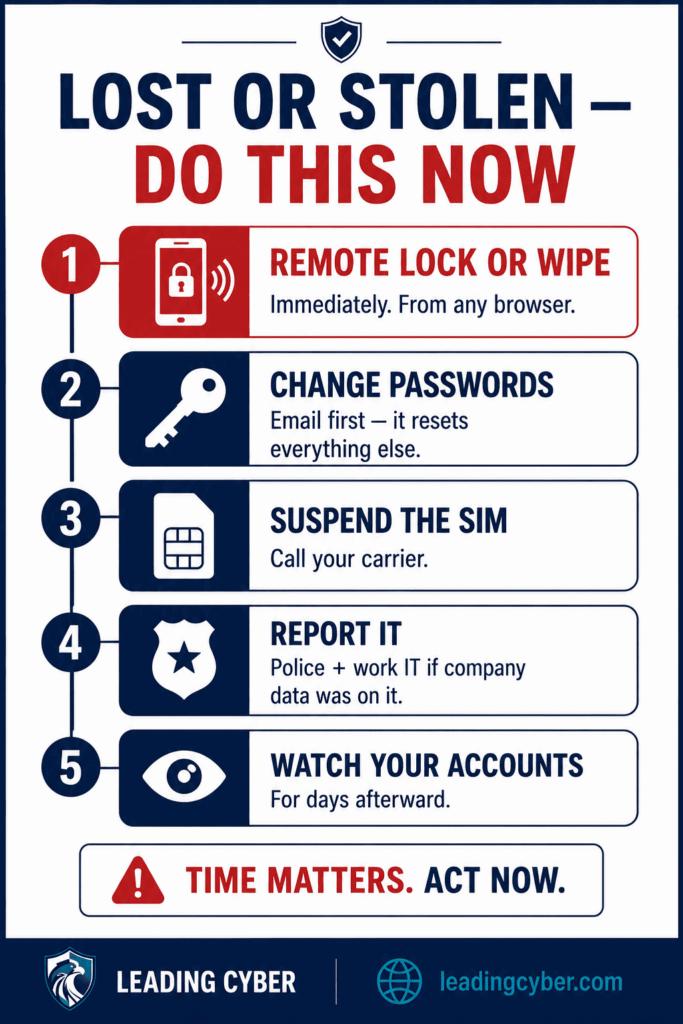
- Remote lock or wipe immediately via Find My iPhone or Find My Device — from a browser, a computer, anywhere. Speed matters more than certainty here; you can always restore from backup.
- Change your most critical passwords — email first, since it’s the reset path to everything else, then banking and any app that was left logged in.
- Contact your carrier to suspend the SIM, closing the door on SMS-based two-factor codes and calls made in your name.
- Report it — to the police for a formal record (often required for insurance), and to work IT immediately if the phone touched company email or systems.
- Check for unauthorized activity over the following days: unexpected password resets, new device logins, unfamiliar charges.
For Organizations: BYOD Changes the Math
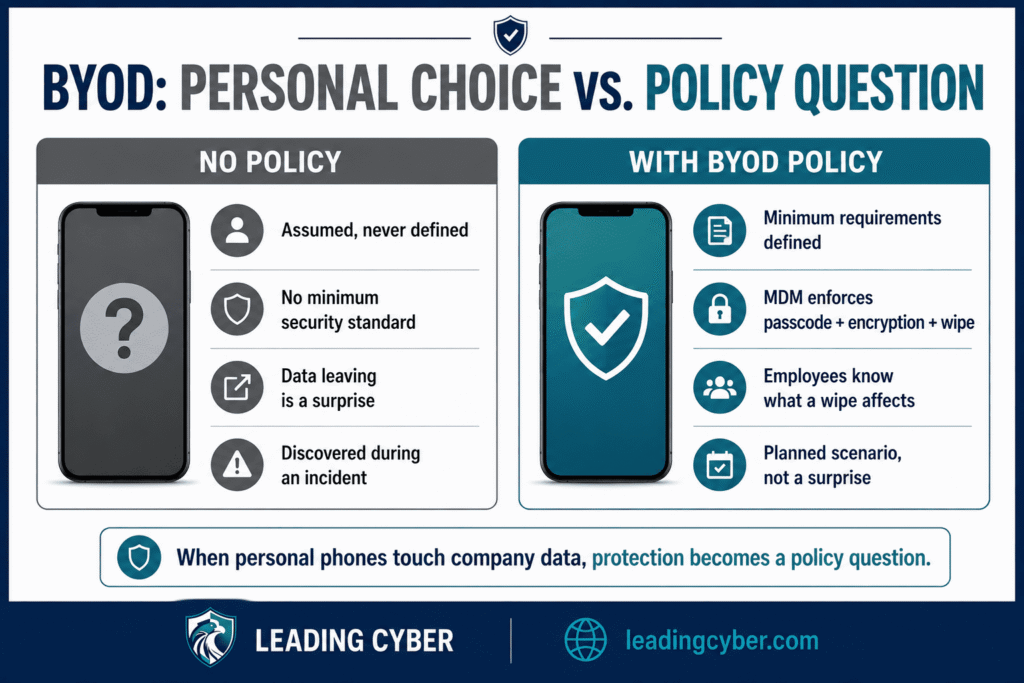
If employees’ personal phones touch company email or data, mobile device protection stops being a personal-choice question and becomes a policy question. A mobile device management (MDM) solution can enforce passcodes, encryption, and remote wipe on enrolled devices; at minimum, your information security policy should define what “acceptable” looks like on a personal device before it touches business data, and your broader data protection strategy should treat “the data left the building in someone’s pocket” as a scenario, not a surprise. This is a genuinely uncomfortable conversation for a lot of organizations, because it means discussing what happens to personal photos and messages if a wipe is triggered — better to have that conversation in the policy than in the moment.
Key Takeaways
- Your phone is an authentication hub, not just a device — losing it risks every account it can reset
- A real passcode, short auto-lock, and remote wipe enabled in advance are the non-negotiables
- Update promptly, install from official stores only, and audit app permissions — mobile patching is the easiest patching you’ll ever do
- Treat public Wi-Fi as hostile and public USB ports as suspect
- Phishing followed you to your phone — smishing and malicious QR codes use the same tells, just harder to spot on a small screen
- If lost: remote wipe first, then passwords, then the carrier, then report it
Frequently Asked Questions
How can you protect data on a mobile device?
Use a real passcode rather than a swipe pattern, enable a short auto-lock, turn on remote wipe capability before you need it, keep the operating system updated, install apps only from official stores, audit app permissions periodically, encrypt backups, use a password manager, and treat public Wi-Fi and USB charging ports as untrusted by default. Together these close the gaps that matter most.
What should you do if your phone is lost or stolen?
Remotely lock or wipe it immediately using Find My iPhone or Find My Device from any browser or computer. Then change your most critical passwords, starting with email since it resets everything else. Contact your carrier to suspend the SIM, report the loss to police (often needed for insurance) and to work IT if company data was on the device, and watch your accounts for unauthorized activity over the following days.
Is it safe to use public Wi-Fi on my phone?
Treat public Wi-Fi as untrusted by default — shared networks in coffee shops and airports can expose your traffic to others on the same network. Use a reputable VPN when connecting to networks you don’t control, avoid logging into sensitive accounts on open public Wi-Fi without one, and be cautious of network names that look official but aren’t verified.
Does encryption matter on a mobile device?
Yes — modern smartphones encrypt data by default when a passcode is set, which is one more reason skipping the passcode is costly. Beyond the device itself, make sure cloud and local backups are also encrypted; an unencrypted backup can undermine the protection built into the phone, since it holds the same sensitive data outside the device’s own safeguards.
What is smishing?
Smishing is phishing carried out over SMS text messages instead of email — a fake delivery notice, bank alert, or “verify your account” text designed to trick you into tapping a malicious link or revealing information. It exploits the same psychological pressure as email phishing but is often harder to spot on a phone, since you can’t preview a link’s real destination as easily before tapping.
Should companies allow employees to use personal phones for work (BYOD)?
BYOD is workable but needs deliberate policy, not silent assumption. Organizations should define minimum security requirements for any personal device touching company data — passcode, encryption, remote wipe — often enforced through mobile device management (MDM) software, and should be upfront with employees about what a remote wipe affects. Treating “sensitive data leaves on a personal phone” as a planned scenario beats discovering it during an incident.
How do I secure my iPhone specifically?
Set a real passcode rather than relying on Face ID alone, enable Find My iPhone with “Send Last Location” turned on, turn on Stolen Device Protection if your iOS version supports it, enable Advanced Data Protection to extend encryption to iCloud backups, check the App Privacy Report periodically, and avoid sideloading apps outside the App Store even where it’s technically permitted. Most of this takes under ten minutes total.
How do I secure my Android phone specifically?
Use a PIN or password instead of a pattern lock, enable Find My Device and confirm location sharing is active, turn on Google Play Protect, verify device encryption under Security settings, review the Privacy Dashboard for apps overusing permissions, keep “Install unknown apps” disabled except when deliberately needed, and prioritize your manufacturer’s monthly security patch level, not just the Android version number. Exact menu names vary by manufacturer, but every modern Android phone has equivalents to each of these.