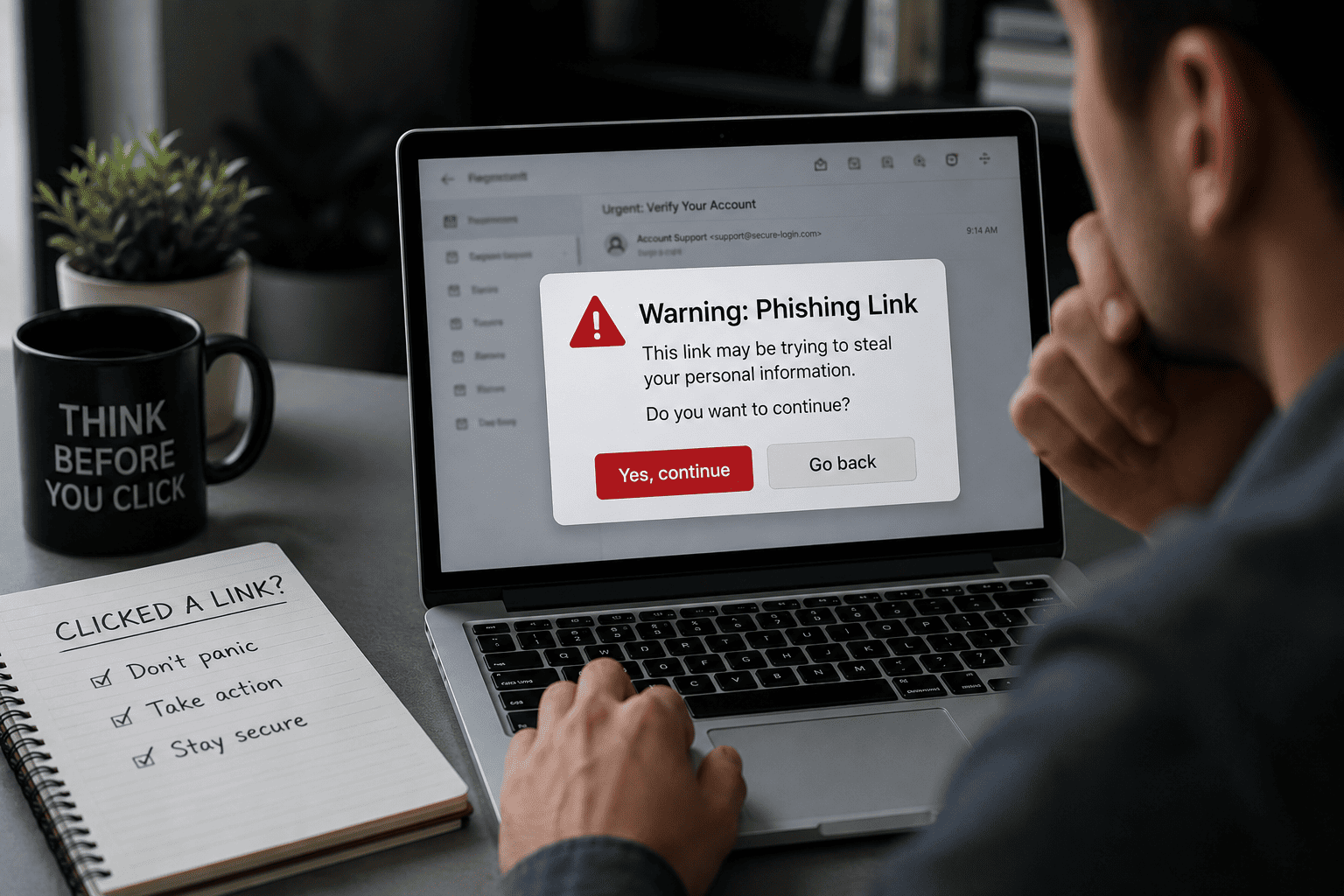
You just realized you clicked on a phishing link. First: don’t panic — what you do in the next ten minutes matters far more than the click itself. However, do act now, because speed is your biggest advantage. Follow the seven steps below in order, then read on to understand what actually happens when you click on a phishing link and how worried you really need to be.What to Do If You Click on a Phishing Link: 7 Steps
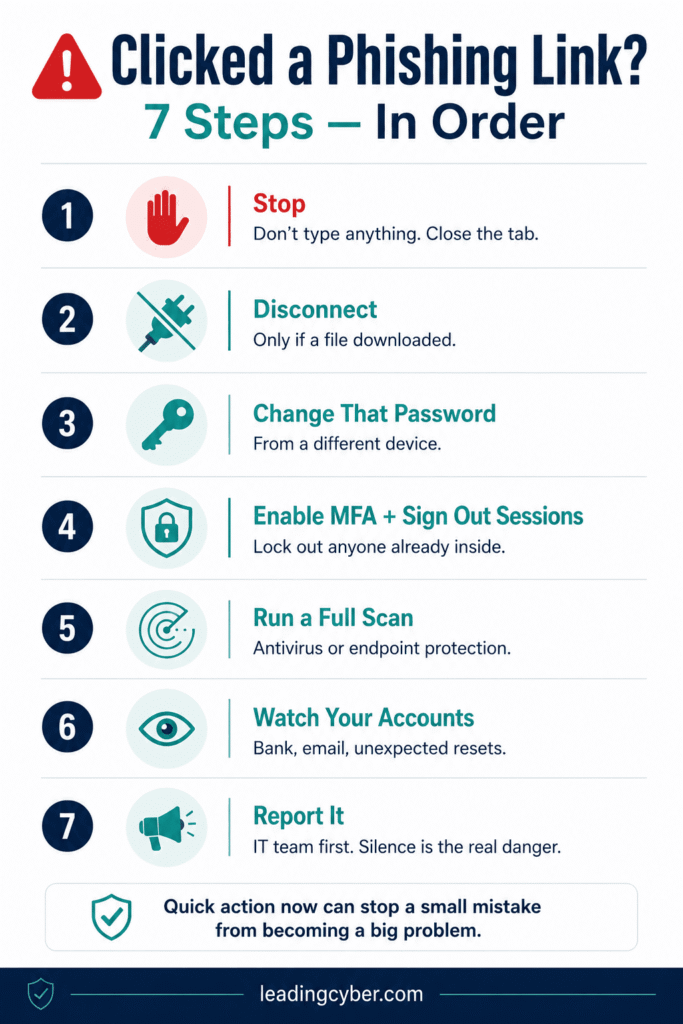
Step 1: Stop — Don’t Enter Anything
If a page opened asking for a password, payment details, or personal information, close it immediately without typing a single character. The click alone rarely gives attackers what they want; the form does. Furthermore, don’t click anything else on the page — no “close” buttons within the page itself, no pop-ups. Close the browser tab directly.
Step 2: Disconnect If You Downloaded Anything
If the link triggered a file download, or your device started behaving strangely, disconnect from Wi-Fi or unplug the network cable. This limits any malware’s ability to spread or send data out while you deal with it. If nothing downloaded and no file ran, you can skip this step.
Step 3: Change the Targeted Password First
If you entered credentials before realizing — this is now the priority. Change that account’s password immediately, ideally from a different device than the one that clicked the link. Moreover, if you reuse that password anywhere else, change it there too; attackers try stolen credentials across every major service within hours.
Step 4: Turn On Multi-Factor Authentication and Sign Out Other Sessions
Enable MFA on the affected account if it wasn’t already on — it can lock attackers out even with a stolen password. Then use the account’s security settings to sign out of all other sessions, which kicks out anyone who logged in with your credentials before you changed them.
Step 5: Run a Full Malware Scan
Run a complete scan with your antivirus or built-in security tools (Windows Security, or your organization’s endpoint protection). If anything downloaded in Step 2, don’t reconnect to the network until the scan comes back clean.
Step 6: Watch Your Accounts
Over the following days and weeks, monitor the affected account and any financial accounts for activity you don’t recognize. If you entered payment card details, contact your bank or card issuer now — they can block the card before it’s used. If you entered a Social Security number or other identity data, consider a credit freeze and report it at IdentityTheft.gov.
Step 7: Report It
At work, tell your IT or security team immediately — even if you feel embarrassed, and especially if you entered credentials. The same email is almost certainly sitting in your colleagues’ inboxes, and your report is what gets it removed before they click too. Then report the email itself: here’s exactly how to report phishing in Outlook in every version.
What Happens If You Click on a Phishing Link?
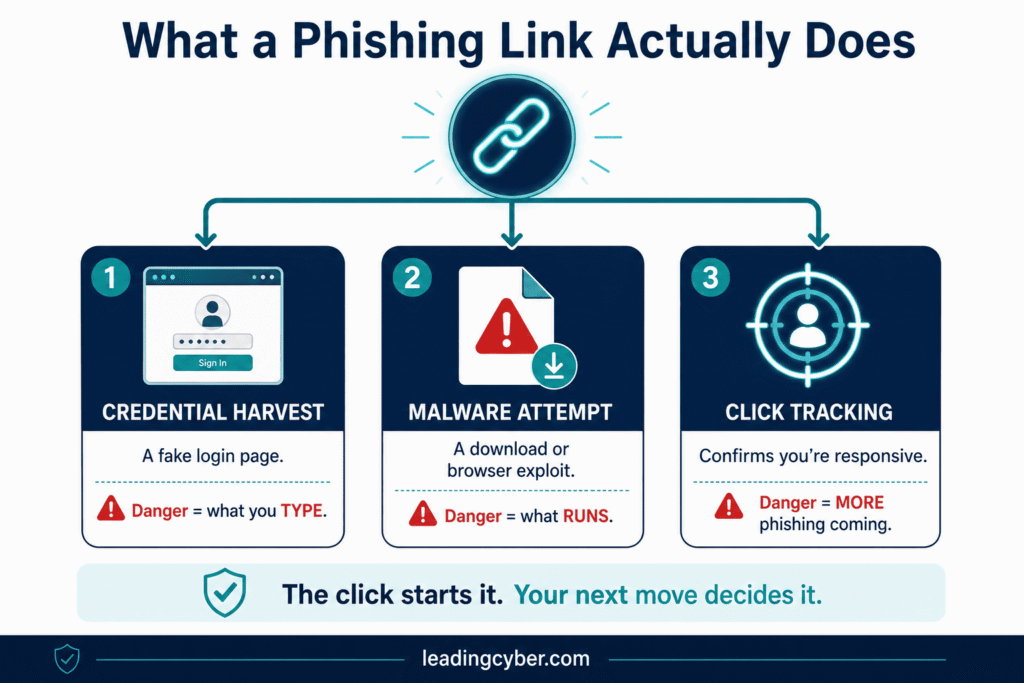
Understanding the mechanics helps you judge your actual risk. A phishing link generally leads to one of three outcomes:
- A credential-harvesting page. The most common case: a fake login page that looks like Microsoft, your bank, or a document portal. The danger is only in what you type. If you typed nothing, the page got nothing.
- A malicious download or exploit. Less common: the link tries to download a file or, rarely, exploit an unpatched browser. This is why Step 5’s scan matters — and why keeping your device updated is your quiet, permanent defense.
- A tracking confirmation. Sometimes the link simply confirms your address is active and that you click. Expect more phishing attempts — you’ve been marked as responsive.
Clicked But Didn’t Enter Anything? Here’s Your Real Risk
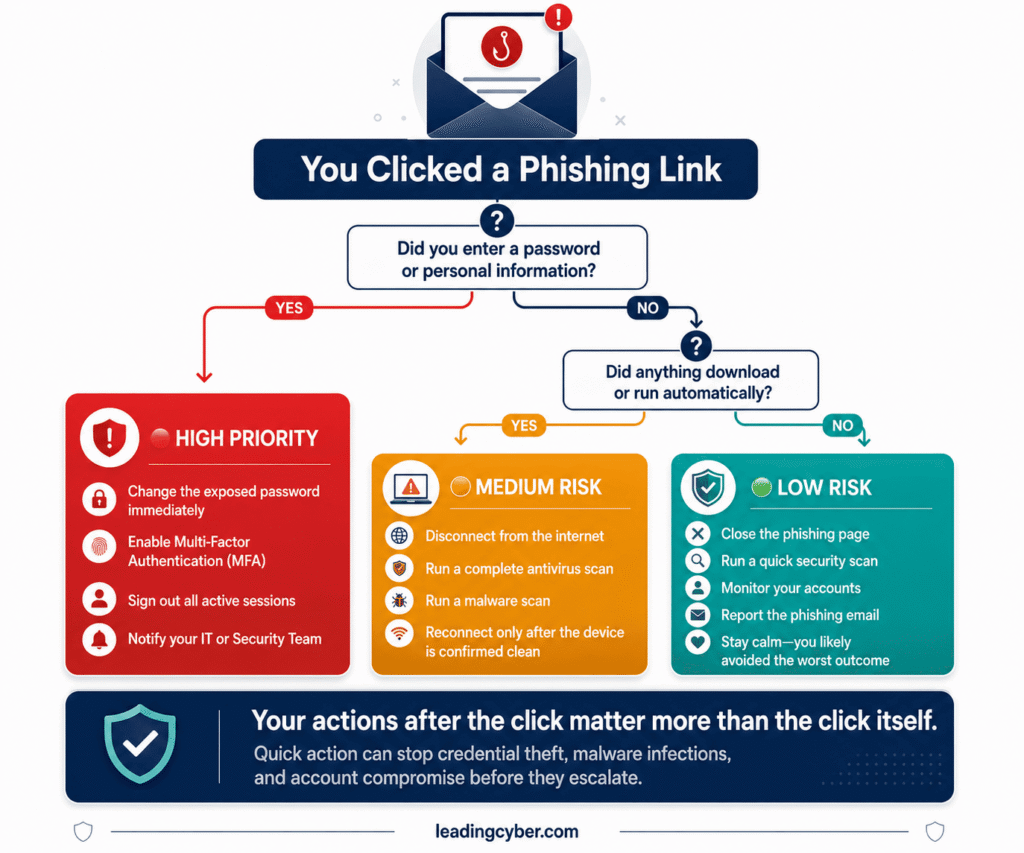
This is the most common scenario, and the news is mostly good: if you clicked the link but entered no information and downloaded no file, your risk is low. Modern browsers and updated phones sandbox web pages precisely to contain this situation.
Therefore, do a proportionate response: close the tab, run a scan for peace of mind, watch the relevant account for a few days, and report the email. You don’t need to change every password you own for a click alone — but you should treat the incident as a rehearsal and note how the email got past your defenses.
Clicked a Phishing Link on Your iPhone or Android?
Phones follow the same seven steps, with a few specifics:
- iPhone: iOS sandboxing makes drive-by infections rare on updated devices. Close the tab, clear Safari history and website data if you’re uneasy, and change any credentials you entered. Malware risk rises significantly only if the device is jailbroken.
- Android: Same steps, plus one check — make sure nothing was installed. Review recent apps and never approve an “install from unknown sources” prompt that appears after a link click.
- Both: If you entered credentials on the phone, change them from another device, enable MFA, and keep the phone’s OS updated — that’s the patch against the exploits phishing links rely on.
The Timeline: First 10 Minutes, First Day, First Week
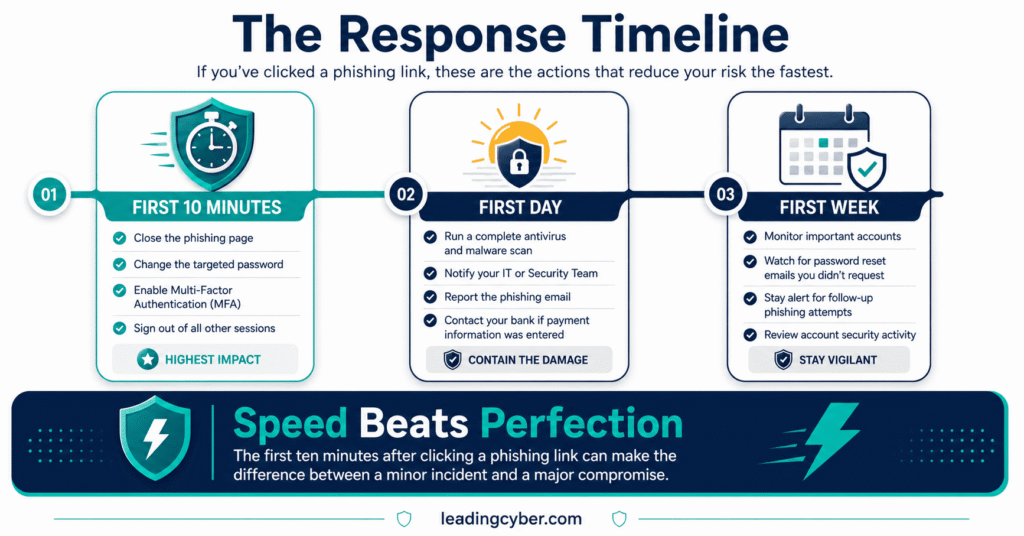
First 10 minutes: close the page, disconnect if anything downloaded, change the targeted password, enable MFA, sign out other sessions.
First day: full malware scan, notify IT (at work) or report the email (at home), contact your bank if payment details were involved.
First week: monitor accounts and statements, watch for password-reset emails you didn’t request, and expect follow-up phishing attempts — attackers often retarget recent clickers while the pressure is fresh. Reviewing real phishing email examples now is the best inoculation against round two.
For IT Leaders: Make “I Clicked” a Safe Sentence
Here’s the uncomfortable truth: in most organizations, the biggest damage doesn’t come from the click — it comes from the hours of silence after the click, when the employee is too afraid to tell anyone. Credential theft is containable in minutes if reported, and catastrophic if hidden for a week.
Therefore, build a no-blame reporting culture: thank people who self-report, never punish an honest click, and measure time-to-report as a security metric. As always, the technology (MFA, filters, endpoint protection) only performs when the people and process around it are aligned — and nothing tests that alignment like the moment after a mistake.
Key Takeaways
- The click alone is rarely the disaster — what you type, download, and how fast you respond decide the outcome
- Entered credentials? Change that password first, from another device, then enable MFA and sign out all sessions
- Clicked but typed nothing? Your risk is low: scan, monitor, report, breathe
- On phones, updated devices are well protected — credentials you entered are the main concern
- At work, report immediately: silence after a click causes more damage than the click
Frequently Asked Questions
What happens if you click on a phishing link?
One of three things: you land on a fake login page designed to steal whatever you type, the link attempts to download malware or exploit an unpatched browser, or the click simply confirms to attackers that your address is active. On updated devices, the click alone rarely causes compromise — the real danger is in credentials entered, files downloaded, or the incident going unreported.
I clicked a phishing link but didn’t enter any information — am I safe?
Most likely yes. Credential-harvesting pages only capture what you type, and modern browsers sandbox web pages against automatic infection. Close the tab, run a malware scan for reassurance, monitor the relevant account briefly, and report the email. Stay alert for follow-up attempts, since clicking marks your address as responsive.
What should I do if I clicked a phishing link on my iPhone?
Close the tab without tapping anything on the page, and change any credentials you entered — ideally from another device — then enable multi-factor authentication. On an updated, non-jailbroken iPhone, malware from a simple link click is rare thanks to iOS sandboxing. Clearing Safari’s history and website data adds peace of mind, and keeping iOS updated is the real ongoing protection.
Can clicking a link give my phone a virus?
On updated phones it’s uncommon. Both iOS and Android sandbox browser content, so infection usually requires an additional step — installing an app, approving a permission, or running a downloaded file. The main risks from a click are entering credentials on a fake page and confirming your number or address to attackers. Outdated devices carry meaningfully more risk, so install updates promptly.
Should I tell my IT department if I clicked a phishing link at work?
Yes — immediately, even if you entered nothing and especially if you entered credentials. IT can reset your password, revoke active sessions, and search for the same email across the organization before colleagues click it. Minutes matter: reported clicks are routine to contain, while hidden clicks are how small mistakes become major incidents.
How do I know if my information was stolen after clicking a phishing link?
Watch for the warning signs: password-reset emails you didn’t request, login alerts from unfamiliar locations or devices, unexpected MFA prompts, charges you don’t recognize, and contacts receiving strange messages from your account. If you entered payment or identity details, notify your bank and consider a credit freeze — and act on the assumption of theft rather than waiting for proof.