A suspicious email just landed in your inbox — now what? Knowing how to report phishing in Outlook takes about ten seconds once you know where the button is. However, most people either delete the email (which helps nobody) or ignore it (which helps the attacker). Reporting it properly trains Microsoft’s filters, alerts your IT team, and protects every other inbox in your organization.
In this guide, I’ll show you how to report a phishing email in Outlook across every version — new Outlook, classic Outlook, the web, and mobile — plus what actually happens after you click report, and what to do when the report phishing button is missing.

How to Report Phishing in Outlook (New Outlook & Web)
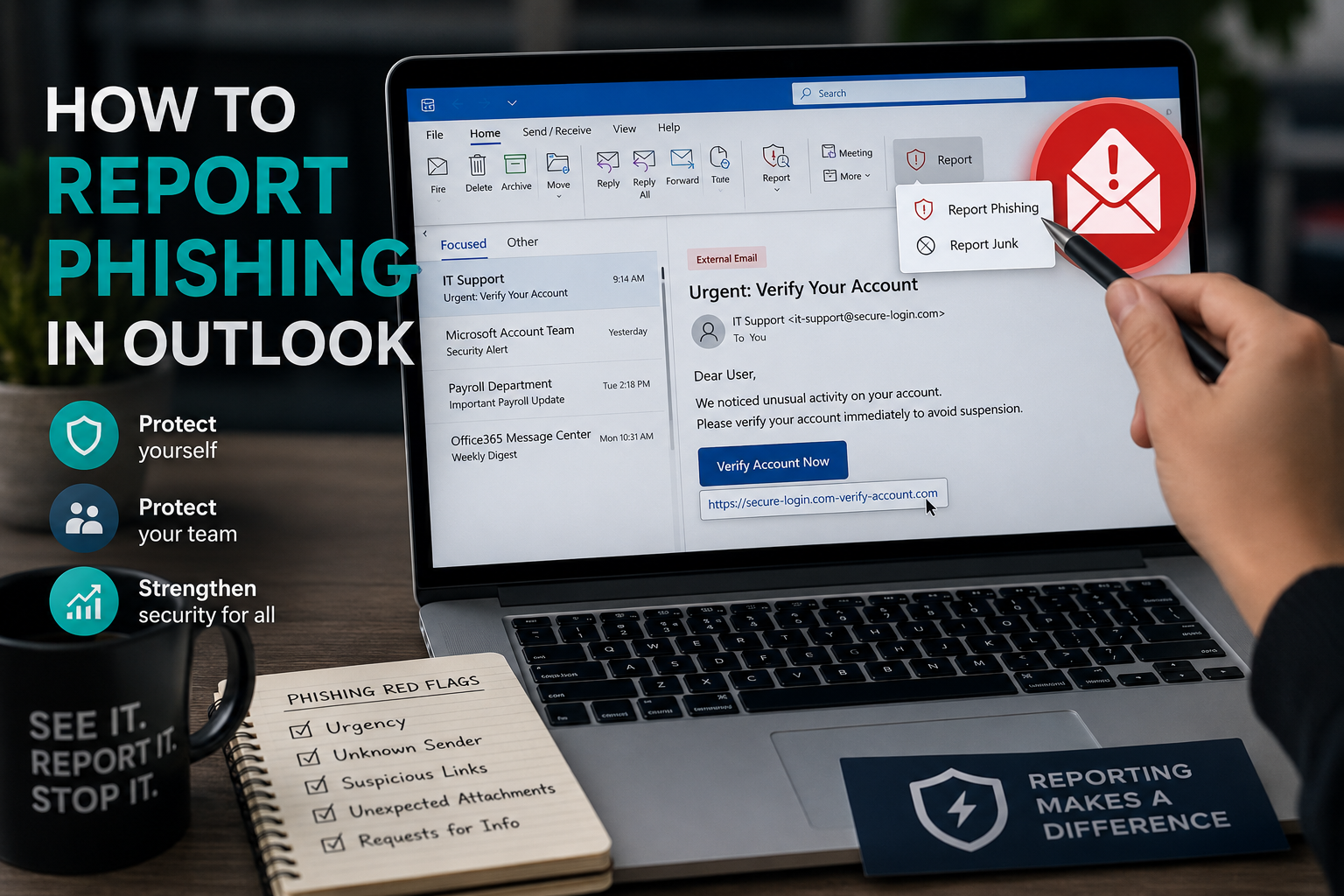
In the new Outlook for Windows and Outlook on the web, Microsoft has made reporting simple:
- Select the suspicious email in your inbox — click it once. Do not click any links or attachments inside it.
- Click the “Report” button in the ribbon at the top of your inbox.
- Choose “Report phishing.” Outlook will confirm and move the message out of your inbox.
That’s it. The message is flagged to Microsoft, and depending on your organization’s settings, your IT or security team is notified too.
Furthermore, note the difference between the two report options: “Report junk” is for ordinary spam — unwanted marketing, newsletters you never signed up for. “Report phishing” is for deception — emails pretending to be your bank, your boss, Microsoft, or a delivery service to steal credentials or money. Choosing the right one matters, because phishing reports get priority handling.
How to Report a Phishing Email in Classic Outlook (Desktop)
Still using classic Outlook for Windows? The steps are nearly identical:
- Select the suspicious message in your inbox.
- On the Home tab, find the Report group in the ribbon.
- Click Report Phishing.
In some older versions, you’ll instead see a Junk dropdown — click the arrow next to it and choose “Phishing” from the menu. Moreover, if your organization uses Microsoft Defender for Office 365, your admin may have deployed the Report Message add-in, which appears as its own button in the ribbon and works the same way.
How to Report Phishing on Outlook Mobile
On the Outlook app for iPhone or Android:
- Open the suspicious email (don’t tap any links).
- Tap the three dots (⋯) in the top-right corner.
- Tap Report junk, then choose Phishing.

Where Is the Report Phishing Button in Outlook?
If you can’t find the report phishing button in Outlook, one of three things is usually going on:
- You’re looking in the wrong spot. In new Outlook and the web, it lives in the top ribbon when a message is selected. In classic Outlook, check the Home tab’s Report group or the Junk dropdown.
- Your admin has customized reporting. Many organizations replace the built-in button with their own reporting tool. Therefore, if you see a branded button instead — use that one; it routes reports directly to your security team.
- The add-in didn’t load. Third-party report buttons (like security awareness training tools such as KnowBe4’s Phish Alert Button) occasionally fail to appear in classic Outlook. Restarting Outlook usually fixes it; if not, check File → Options → Add-ins to confirm the add-in is enabled, or contact your IT team — the add-in may need to be redeployed.
What Happens After You Report Phishing in Outlook?
Reporting isn’t just inbox housekeeping. When you click that button, several things happen:
- The message is moved out of your inbox (to Junk or deleted, depending on settings)
- A copy goes to Microsoft’s filtering systems, which use reports to improve phishing detection for everyone
- In organizations with Microsoft Defender for Office 365, the report can alert your security team, who can then hunt for the same email in other inboxes and remove it before anyone clicks
That last point is why reporting beats deleting. Furthermore, if you received the phishing email, chances are your colleagues did too — your report is often the early warning that protects them. One reported email can stop an incident; one deleted email just hides the evidence.

How to Report Phishing in Gmail (Quick Bonus)
Using Gmail at home or for a side business? The process is similar: open the message, click the three dots (⋮) in the top-right corner of the email, and select Report phishing. Gmail forwards the message to Google’s security team and removes it from your inbox.
Reporting Phishing Beyond Your Inbox
For phishing that impersonates specific organizations, or if you want to help the broader fight:
- Anti-Phishing Working Group: forward phishing emails to reportphishing@apwg.org
- FTC: report scams at reportfraud.ftc.gov
- Phishing text messages: forward them to 7726 (SPAM)
- IRS impersonation: forward to phishing@irs.gov
For IT Leaders: Make Reporting Effortless
Here’s the leadership angle most guides skip. Employees only report phishing when reporting is easy, encouraged, and never punished. If your reporting process requires forwarding emails to a shared mailbox with a written explanation, people won’t do it. If someone who clicked a link gets publicly shamed, reports stop coming entirely.
Therefore, treat your report button as a critical security control: deploy it to every client, mention it in onboarding, thank people who report (even false alarms), and track your reporting rate as a health metric. This is a perfect example of how security outcomes depend on people and process rather than technology — the button is trivial; the culture around it is everything.
Key Takeaways
- In new Outlook and web: select the email → Report → Report phishing
- In classic Outlook: Home tab → Report group, or the Junk dropdown → Phishing
- On mobile: three dots → Report junk → Phishing
- Report phishing beats delete — it alerts Microsoft and can warn your whole organization
- Junk = unwanted; phishing = deceptive. Choose correctly, phishing gets priority
- If the button is missing, your organization may use its own reporting tool — ask IT

Frequently Asked Questions
Where is the report phishing button in Outlook?
In new Outlook and Outlook on the web, the Report button sits in the top ribbon when an email is selected — click it and choose “Report phishing.” In classic Outlook, look on the Home tab in the Report group, or click the arrow next to the Junk button and select “Phishing.” On mobile, tap the three dots inside the email, then Report junk → Phishing.
What is the difference between report junk and report phishing in Outlook?
Report junk is for unwanted but honest email — spam, marketing, newsletters. Report phishing is for deceptive email that impersonates a person or brand to steal credentials, money, or data. Phishing reports receive priority handling and, in business environments, can alert your security team, so choosing the correct option genuinely matters.
What happens when you report phishing in Outlook?
The message is removed from your inbox and a copy is sent to Microsoft to improve its filters. In organizations using Microsoft Defender for Office 365, the report can also notify your security team, who can search for and remove the same phishing email from every other mailbox before more people click it.
Should I delete a phishing email or report it?
Report it. Deleting a phishing email only protects you; reporting it protects everyone. Your report helps Microsoft’s filters catch the next wave and gives your IT team the early warning they need to remove the same message from colleagues’ inboxes. Report first — Outlook removes it from your inbox automatically afterward.
What is a common indicator of a phishing attempt?
The most common indicators are a sense of false urgency (“your account will be closed today”), a sender address that doesn’t match the display name, generic greetings, links whose real destination differs from the visible text, unexpected attachments, and requests for credentials or payment. Virtually all phishing emails share one trait: they pressure you to act quickly without thinking.
How do I report phishing in Gmail?
Open the suspicious email in Gmail, click the three vertical dots in the top-right corner of the message, and select “Report phishing.” Google analyzes the message, uses it to strengthen filtering for all users, and removes it from your inbox.