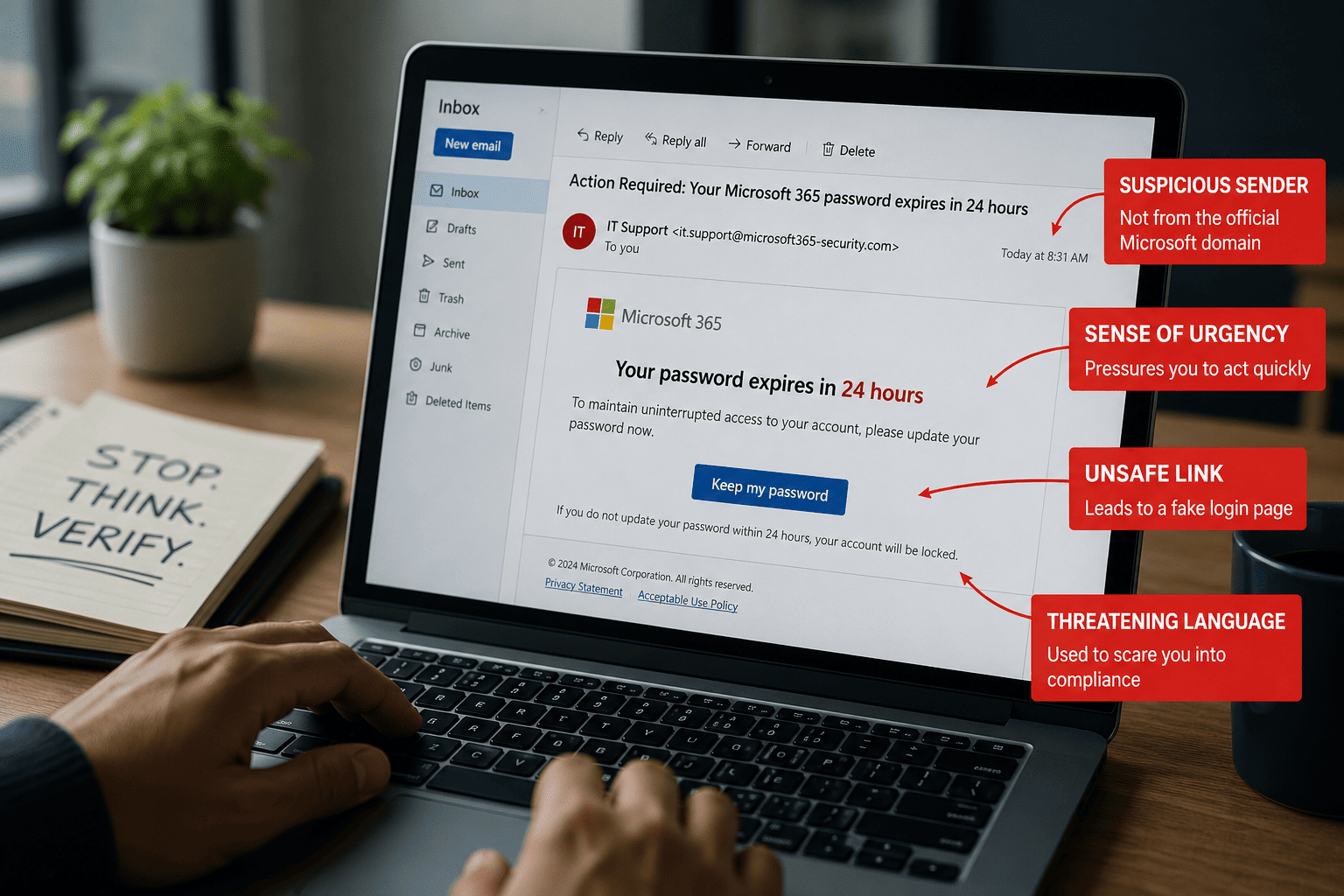
The fastest way to stop falling for phishing is to see it coming — and the fastest way to see it coming is to study real phishing email examples. Attackers reuse the same handful of psychological plays over and over: urgency, authority, curiosity, fear. Once you’ve seen each play annotated, you’ll recognize it instantly in your own inbox.
Below are 10 of the most common phishing email examples circulating today, each with its red flags marked. Furthermore, at the end you’ll find the one trait virtually all phishing emails have in common — the tell that works even on scams you’ve never seen before.

10 Common Phishing Email Examples
1. The Password Expiration Notice
Subject: “Action Required: Your Microsoft 365 password expires in 24 hours”
A fake IT notice claiming your password is about to expire, with a “Keep my password” button leading to a counterfeit login page that harvests your credentials.
Red flags: external sender address pretending to be internal IT, a deadline measured in hours, and a login link that doesn’t point to your organization’s real domain. Real IT departments rarely email password-expiry countdowns with login links.
2. The Fake Invoice
Subject: “Invoice #48291 — Payment Overdue”
An unexpected invoice, usually as an attachment or a link, from a supplier you may or may not recognize. The goal is either malware (the attachment) or redirected payment (the “updated bank details”).
Red flags: an invoice you weren’t expecting, pressure about late fees, attachment types like .html or .zip, and any request to change payment details by email.
3. The Gift Card Request From “the CEO”
Subject: “Quick favor — are you at your desk?”
A short, casual message that appears to come from an executive, asking you to buy gift cards for a client surprise and send the codes “discreetly.” This is business email compromise (BEC) in its simplest form — no links, no attachments, just social pressure.
Red flags: unusual request from authority, secrecy (“don’t tell anyone, it’s a surprise”), urgency, and a reply-to address that doesn’t match the executive’s real one. Moreover, no legitimate executive settles business in gift cards.
4. The Missed Delivery Notice
Subject: “We couldn’t deliver your package — reschedule now”
A fake courier notification asking you to pay a small “redelivery fee” or confirm your address. The tiny payment is the pretext for capturing your card details.
Red flags: a delivery you don’t remember ordering, a fee under a few dollars (small enough to not think twice), and a tracking link pointing to a domain that isn’t the courier’s.
5. The Bank Account Alert
Subject: “Unusual sign-in detected — verify your account immediately”
A security-themed scare claiming suspicious activity on your account, with a “Verify now” button. Ironically, phishing emails about fraud are among the most effective phishing emails.
Red flags: generic greeting (“Dear Customer”), threat of account suspension, and a verification link. Your real bank asks you to log in through its official app or website — never through an email button.
6. The Payroll Update
Subject: “Confirm your direct deposit details for this pay cycle”
Aimed at HR and employees alike: an email impersonating payroll asking to “re-confirm” bank details, or impersonating an employee asking HR to change their deposit account.
Red flags: any banking change requested via email, timing near payday, and sender addresses one letter off from the real domain. Therefore, every deposit change deserves voice verification.
7. The Shared Document
Subject: “Alex shared ‘Q3-Budget-Final.pdf’ with you”
A convincing imitation of DocuSign, SharePoint, or Google Drive notifications. The “View document” button leads to a fake login page — because you need to “sign in” to see the file.
Red flags: a document you weren’t expecting, a sender you don’t work with, and a login prompt after clicking. Real shared documents from your own organization don’t ask you to re-enter credentials on an unfamiliar page.
8. The Tax Refund
Subject: “You are eligible for a tax refund of $743.20”
Seasonal but evergreen: the tax authority owes you money, and you just need to submit your details to claim it.
Red flags: the IRS does not initiate refund contact by email, precise refund amounts designed to feel legitimate, and forms requesting your SSN and bank details together.
9. The Verification Code You Didn’t Request
Subject: “Your verification code is 882641” — followed by a call or message asking you to share it
The attacker triggers a real MFA code to your phone or inbox, then poses as support asking you to “read it back to confirm your identity.” Sharing it hands them your account.
Red flags: any request to share a code. Verification codes prove you are you — no legitimate company will ever ask you to tell them one.
10. The Dream Job Offer
Subject: “Interview invitation — Senior role, remote, $9k/month”
Spear phishing through flattery: a recruiter message referencing your real skills, leading to a “screening form” that collects personal data, or an “onboarding kit” attachment carrying malware.
Red flags: offers you never applied for, salary details before any interview, recruiter addresses on free email domains, and requests for ID documents or banking details early in the “process.”

What Do Virtually All Phishing Emails Have in Common?
Strip away the branding and every sample phishing email above runs the same play: manufactured pressure to act before you think.
The pressure comes in four flavors:
- Urgency — deadlines, expiring passwords, “within 24 hours”
- Authority — the CEO, the bank, the IRS, IT support
- Fear — account suspension, missed payments, security breaches
- Curiosity or reward — refunds, shared documents, dream jobs
This is why phishing is fundamentally a human problem, not a technical one. The email itself is just a delivery mechanism for psychological pressure. Therefore, the universal defense is also psychological: when an email makes you feel rushed, that feeling is the red flag. Slow down, verify through a separate channel, and never act on pressure alone.

How to Tell If an Email Is Phishing: The 30-Second Check
Before clicking anything in a suspicious email, run this quick check:
- Check the real sender address — not the display name. Look for misspelled or lookalike domains.
- Hover over links (or long-press on mobile) to preview the actual destination before clicking.
- Ask: was I expecting this? Unexpected invoices, documents, and deliveries are guilty until proven innocent.
- Notice your own pulse. If the email is making you anxious or rushed, that’s engineered — and it’s the strongest signal of all.
- Verify through another channel. Call the person, open the official app, or type the website address yourself.
Received One? Report It
If any of these phishing email examples just matched something in your inbox, don’t delete it — report it. Reporting takes ten seconds and protects every other inbox in your organization. Here’s our full step-by-step guide on how to report phishing in Outlook across every version.
For IT Leaders: Turn These Examples Into Training
Generic “don’t click suspicious links” advice doesn’t change behavior — recognition training does. Use real, annotated examples like these in your security awareness program: share one per month in your internal newsletter, discuss recent attempts your filters caught, and celebrate employees who report. Furthermore, recognition is a culture outcome, not a tooling outcome — the same principle behind people, process, and technology alignment: your best phishing defense is a workforce that has seen the plays before.
Key Takeaways
- Attackers recycle the same 10 themes: passwords, invoices, executives, deliveries, banks, payroll, documents, taxes, codes, and jobs
- Virtually all phishing emails share one trait — manufactured pressure to act without thinking
- The real sender address and the real link destination expose most fakes in seconds
- Feeling rushed by an email is itself the biggest red flag
- Report phishing instead of deleting it — one report protects the whole organization

Frequently Asked Questions
What are the most common phishing email examples?
The most common phishing email examples are fake password-expiration notices, unexpected invoices, gift card requests impersonating executives, missed delivery notifications, bank security alerts, payroll or direct-deposit updates, shared document notifications, tax refund offers, requests to share verification codes, and unsolicited job offers. All of them apply pressure — urgency, authority, fear, or reward — to make you act quickly.
What does a phishing email look like?
A phishing email typically imitates a trusted brand or person, uses a sender address that doesn’t match the display name, opens with a generic greeting, creates urgency or fear, and contains a link or attachment as its payload. Well-crafted ones look nearly identical to legitimate emails — which is why checking the real sender address and hovering over links matters more than judging appearance.
What do virtually all phishing emails have in common?
Virtually all phishing emails share one trait: manufactured pressure to act before thinking. Whether through urgency (deadlines), authority (executives, banks, government), fear (account suspension), or reward (refunds, job offers), the goal is always to short-circuit your judgment. If an email makes you feel rushed, treat that feeling as the primary red flag.
How can you tell if an email is phishing?
Check the actual sender address rather than the display name, hover over links to preview their true destination, ask whether you were expecting the message, and verify unusual requests through a separate channel like a phone call or the official app. Unexpected attachments, login prompts, and any request involving payment changes or verification codes deserve automatic suspicion.
What should you do if you receive a phishing email?
Don’t click links, open attachments, or reply. Report the email using your mail client’s built-in reporting feature — in Outlook, select the message and choose Report phishing — which alerts Microsoft and, in workplace environments, your security team. Reporting beats deleting because it helps remove the same email from colleagues’ inboxes before they click.
Can you get hacked just by opening a phishing email?
Simply opening a modern email is very unlikely to compromise you — the danger lives in the links, attachments, and replies. That said, opening can confirm your address is active if remote images load. The safe habit: preview suspicious messages without clicking anything, then report them. If you did click a link or enter credentials, change that password immediately and notify your IT team.